Web UI (ros2_medkit_web_ui)
ros2_medkit_web_ui is a lightweight web application for browsing SOVD entity trees. It connects to the ros2_medkit gateway and visualizes the entity hierarchy.
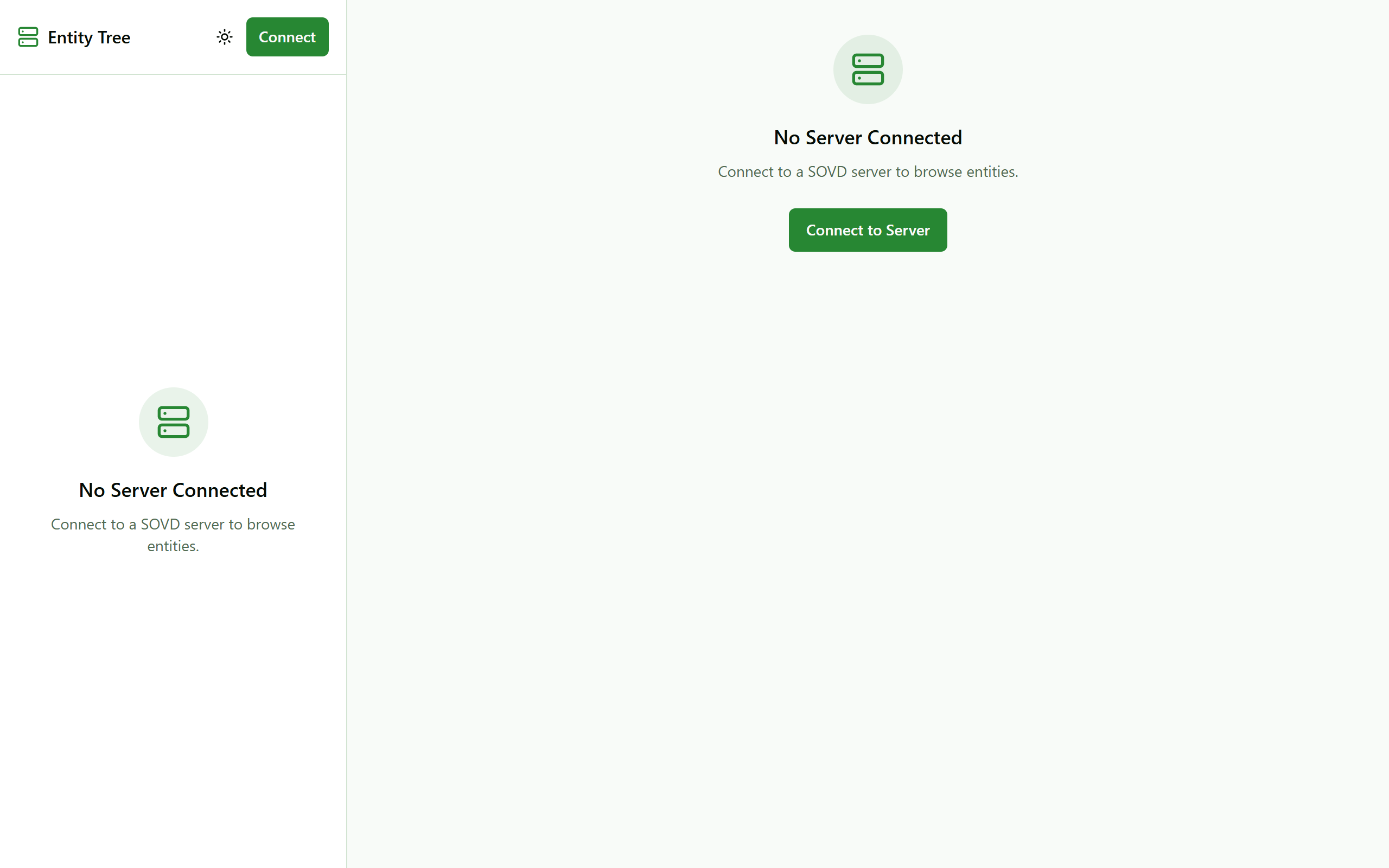
The ros2_medkit_web_ui interface showing entity tree, detail panel, and data view.
Features
Server Connection Dialog — Enter the URL of your gateway
Entity Tree Sidebar — Browse the hierarchical structure with lazy-loading
Entity Detail Panel — View raw JSON details of any selected entity
Data/Operations/Configurations — Virtual folders for each entity
Quick Start
Using Docker
# Pull from GitHub Container Registry
docker pull ghcr.io/selfpatch/ros2_medkit_web_ui:latest
docker run -p 3000:80 ghcr.io/selfpatch/ros2_medkit_web_ui:latest
Then open http://localhost:3000 in your browser.
From Source
# Clone the repository
git clone https://github.com/selfpatch/ros2_medkit_web_ui.git
cd ros2_medkit_web_ui

# Install dependencies
npm install

# Build for production
npm run build

# Start development server (port 5173)
npm run dev
Connecting to ros2_medkit
Open the web UI in your browser — you’ll see the connection dialog:
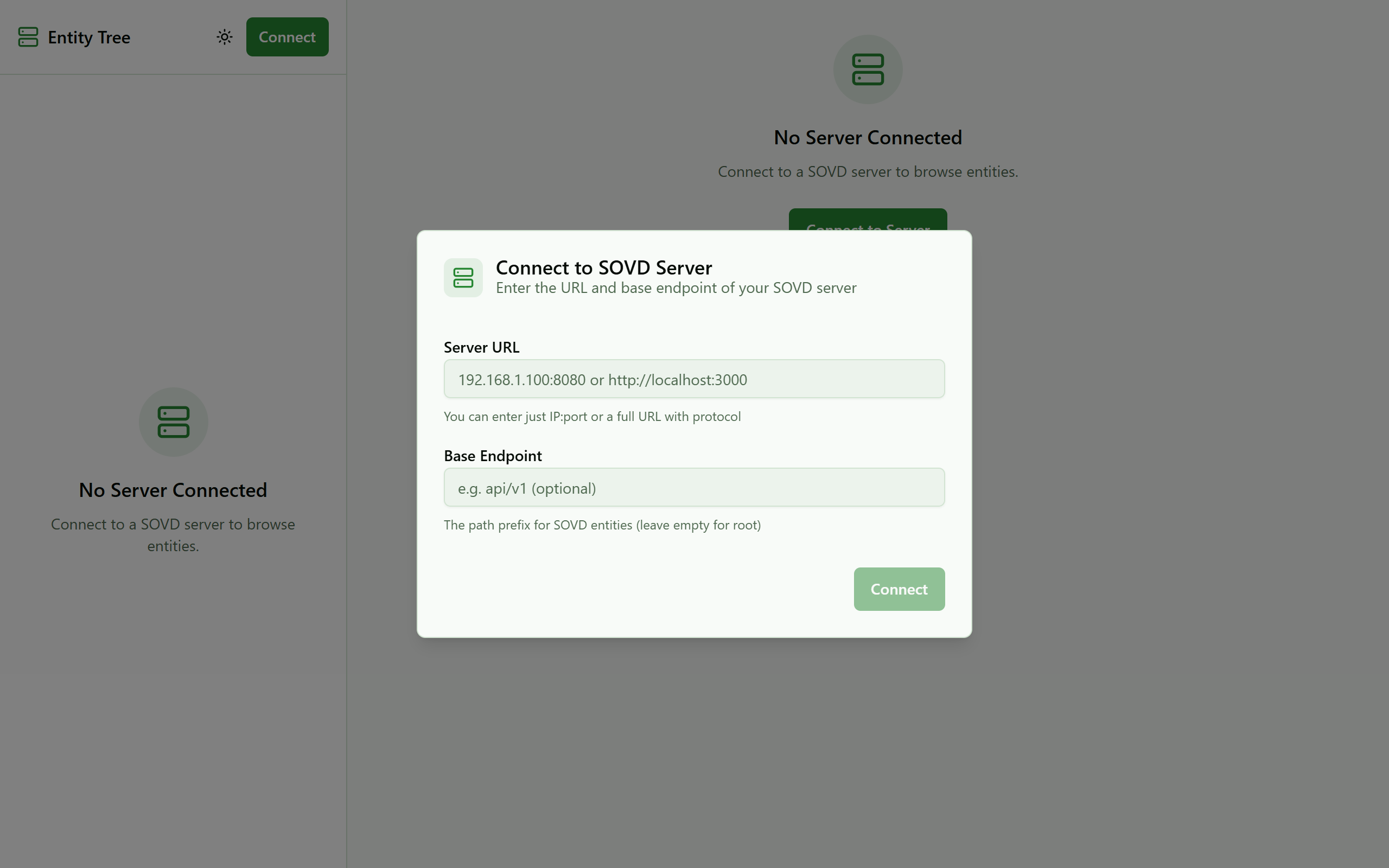
Connection dialog prompting for gateway URL.
Enter the gateway URL (e.g.,
http://localhost:8080) and base endpoint (e.g.,api/v1):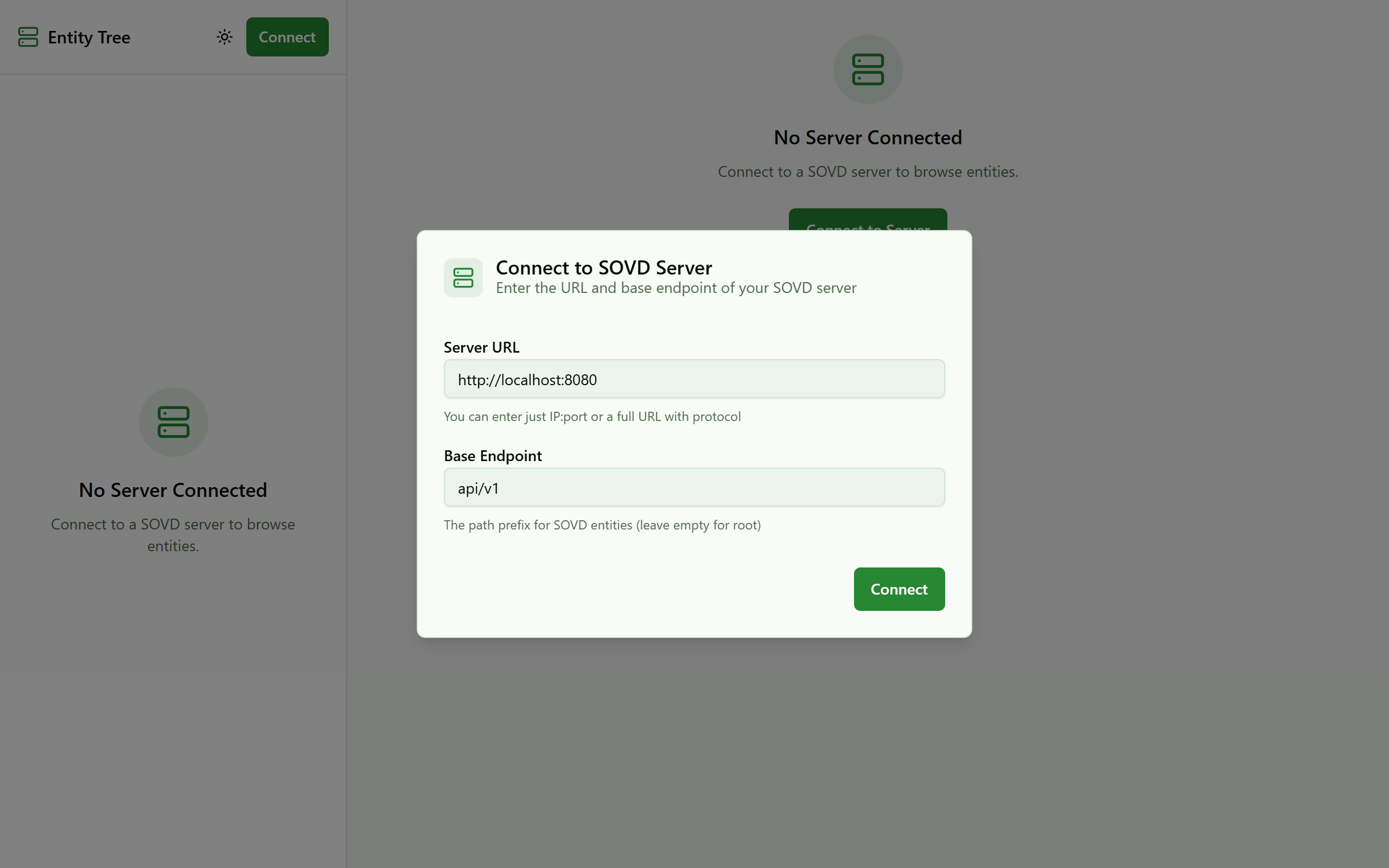
Enter your gateway URL and click Connect.
Browse the entity tree in the left sidebar:
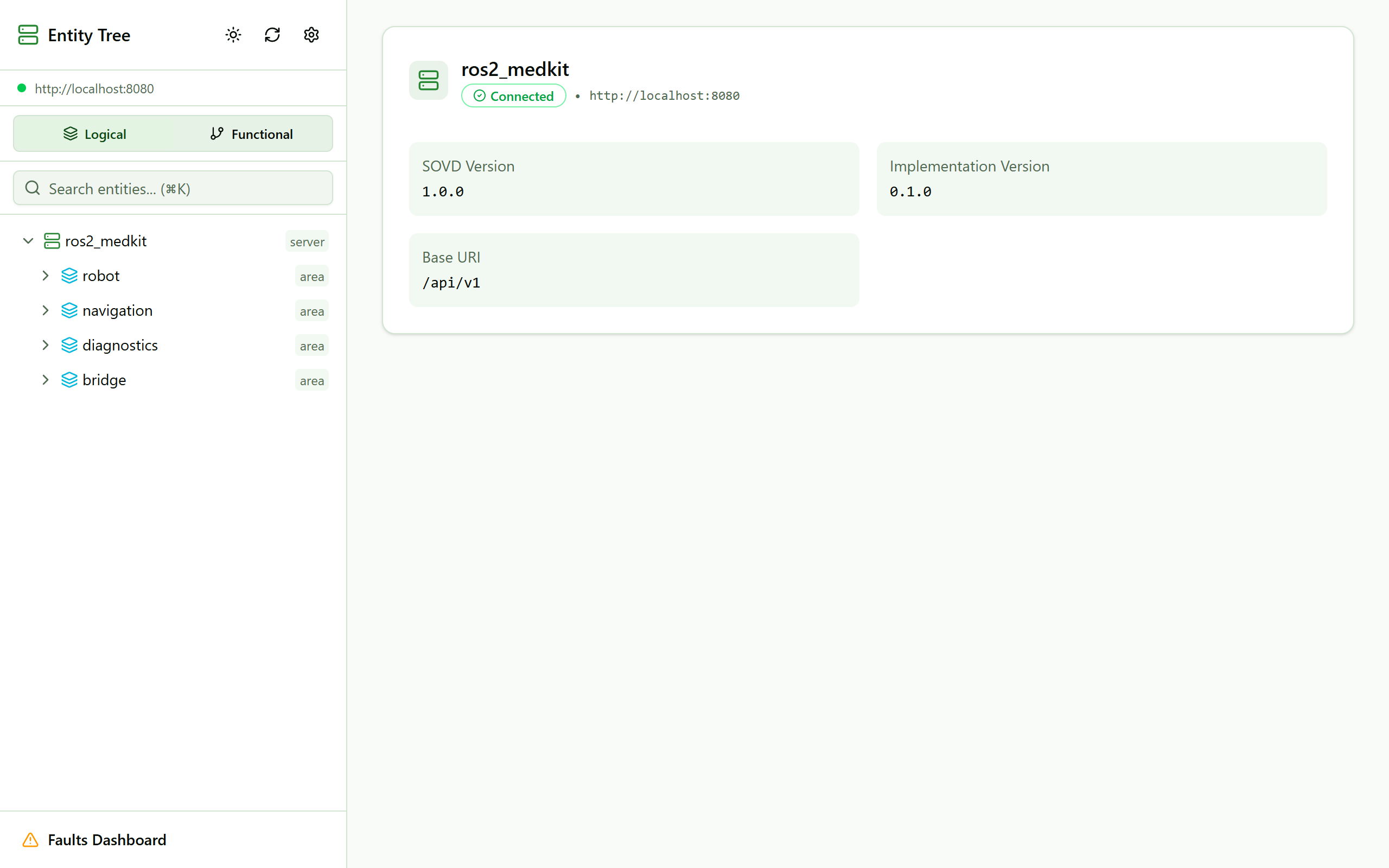
Entity tree showing areas and components.
Expand nodes to see the hierarchy:
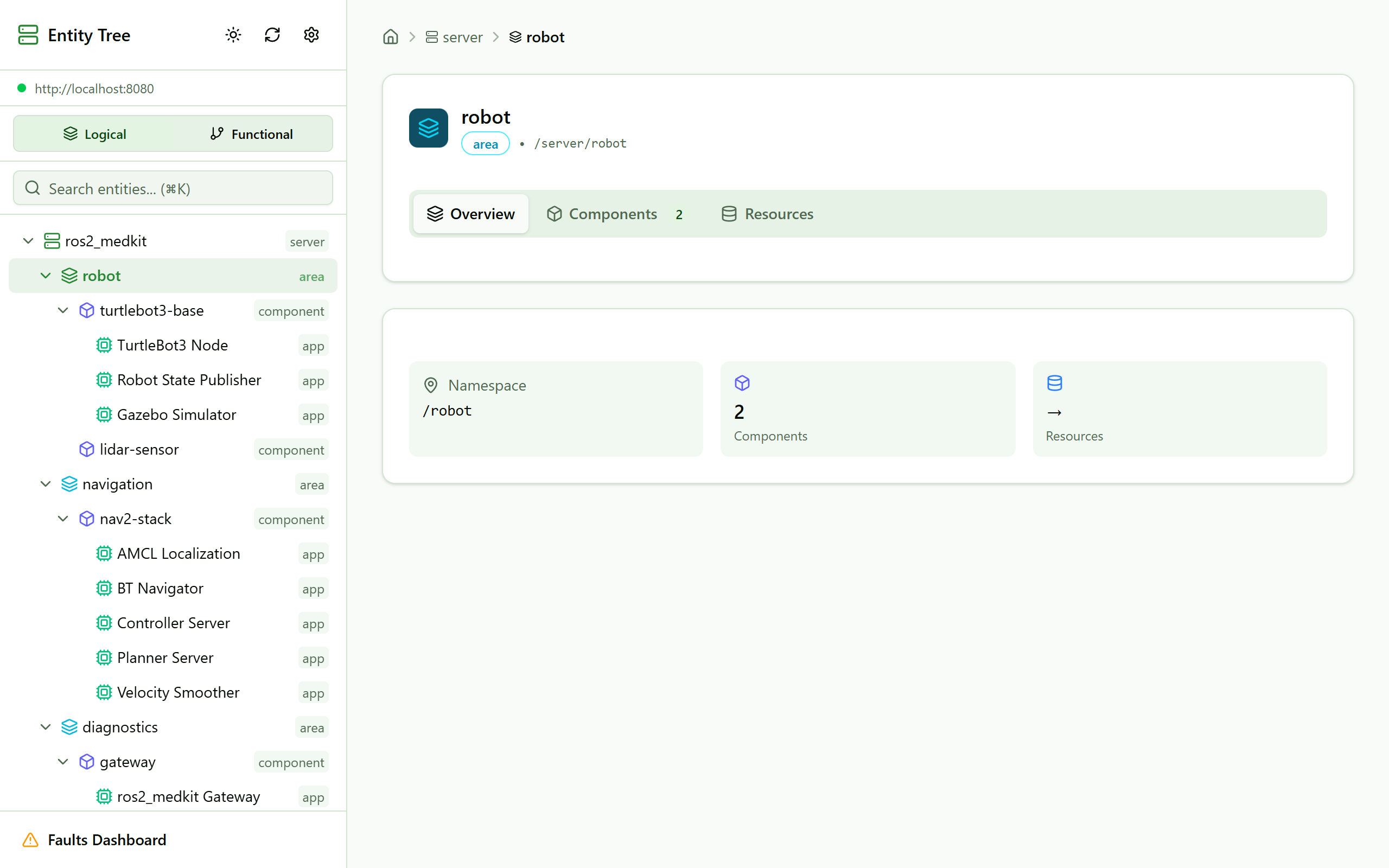
Expanded tree showing apps and virtual folders.
Click on any entity to view its details:
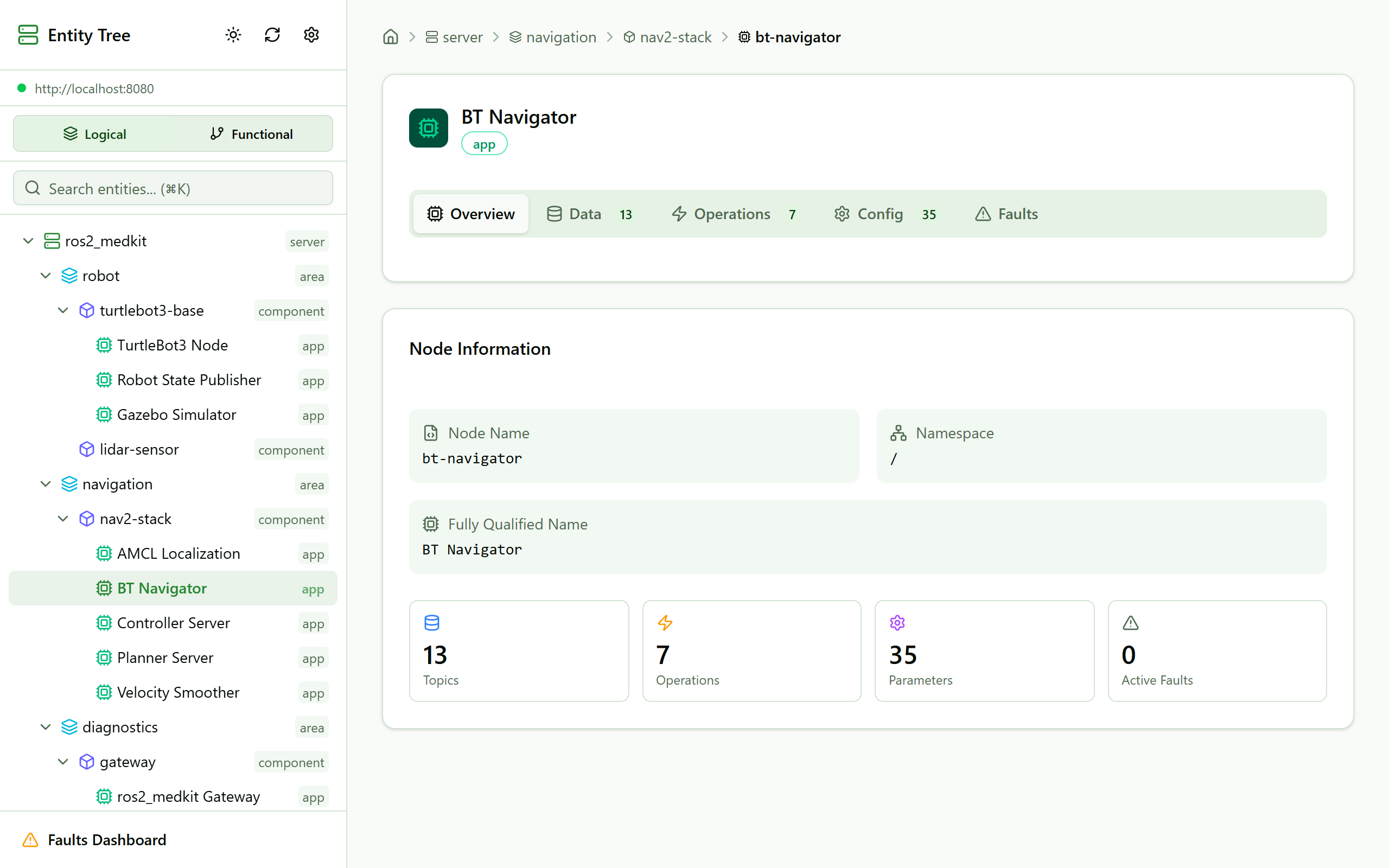
Detail panel showing entity metadata and capabilities.
Tip
If the gateway runs on a different host, ensure CORS is configured. See Server Configuration for CORS settings.
Using the Interface
Data View
Click on the data folder under any entity to see available topics:
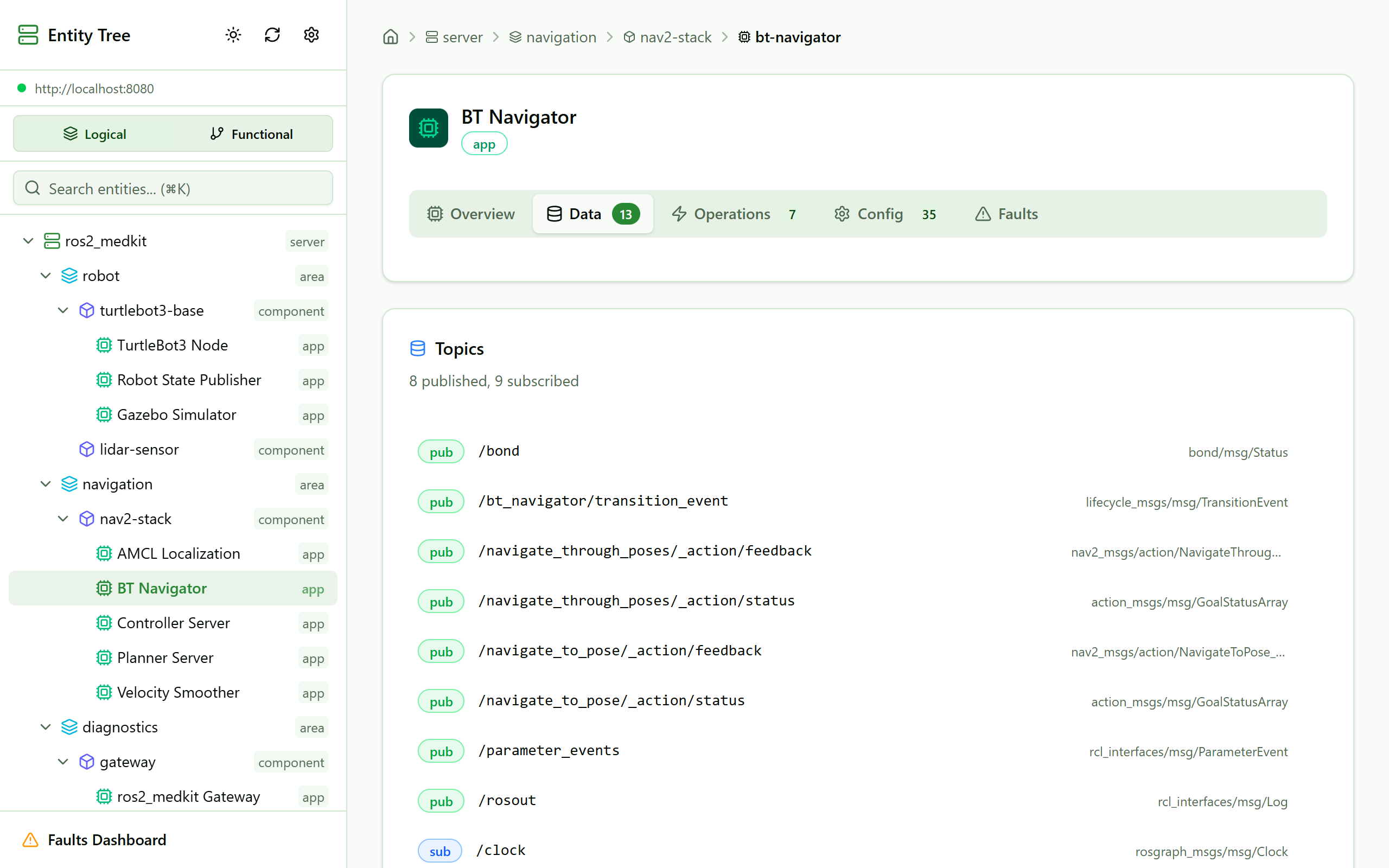
List of topics published by an entity.
Click on a specific topic to see its current value:
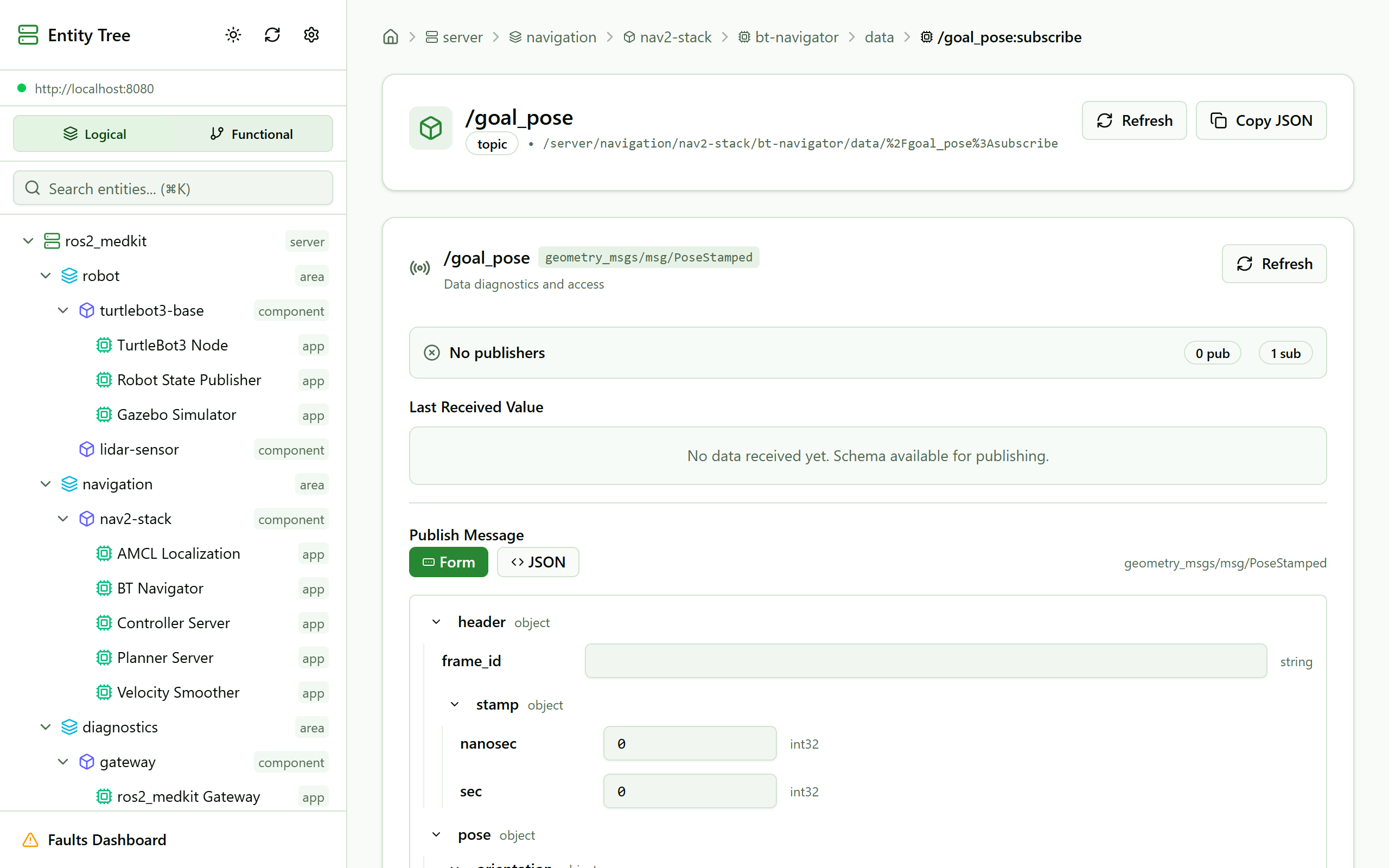
Real-time topic data with JSON visualization.
Operations
The operations folder shows available services and actions:
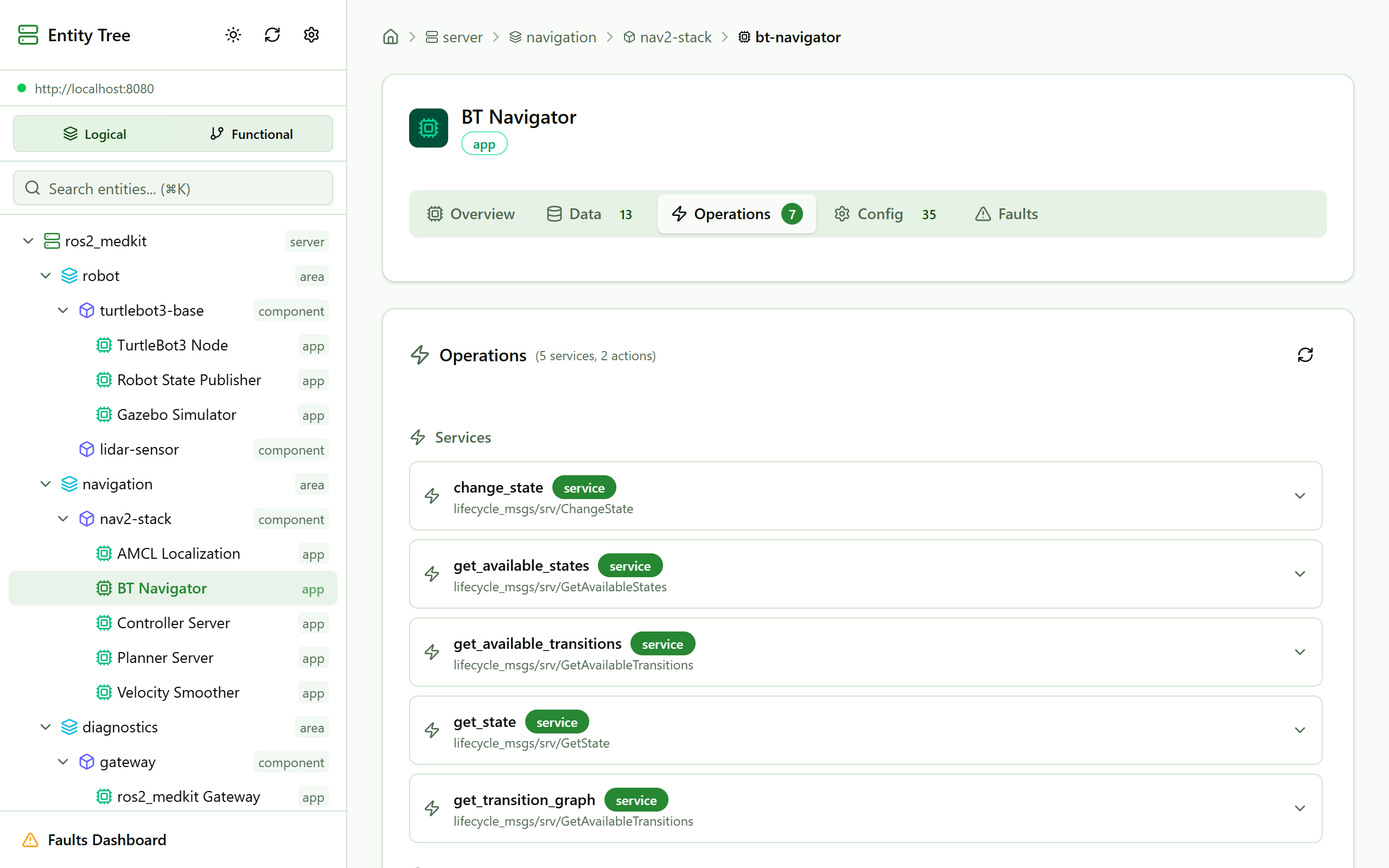
List of operations (services and actions) for an entity.
Execute an operation and see the result:
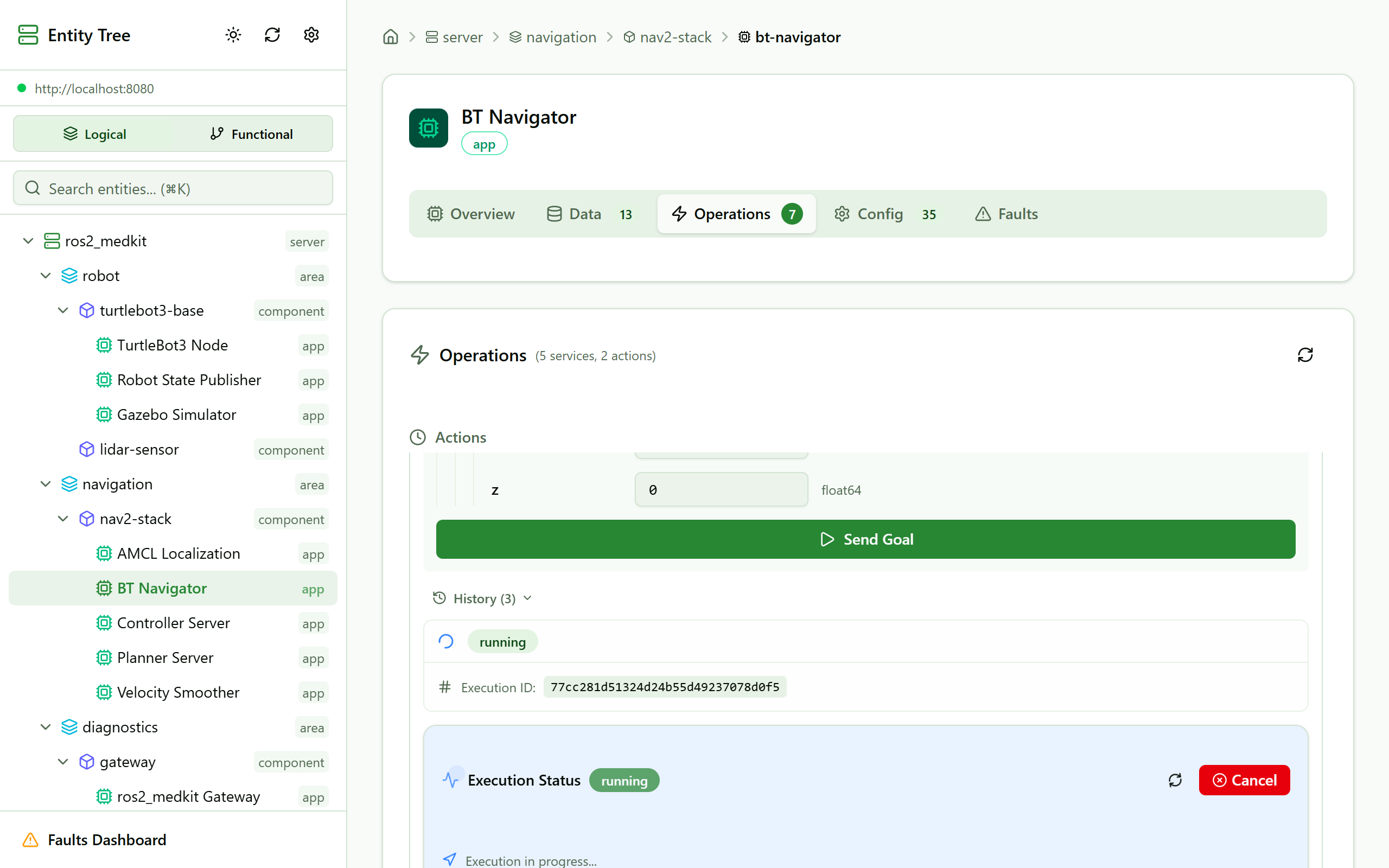
Operation execution with request/response display.
Configurations
The configurations folder exposes ROS 2 node parameters:
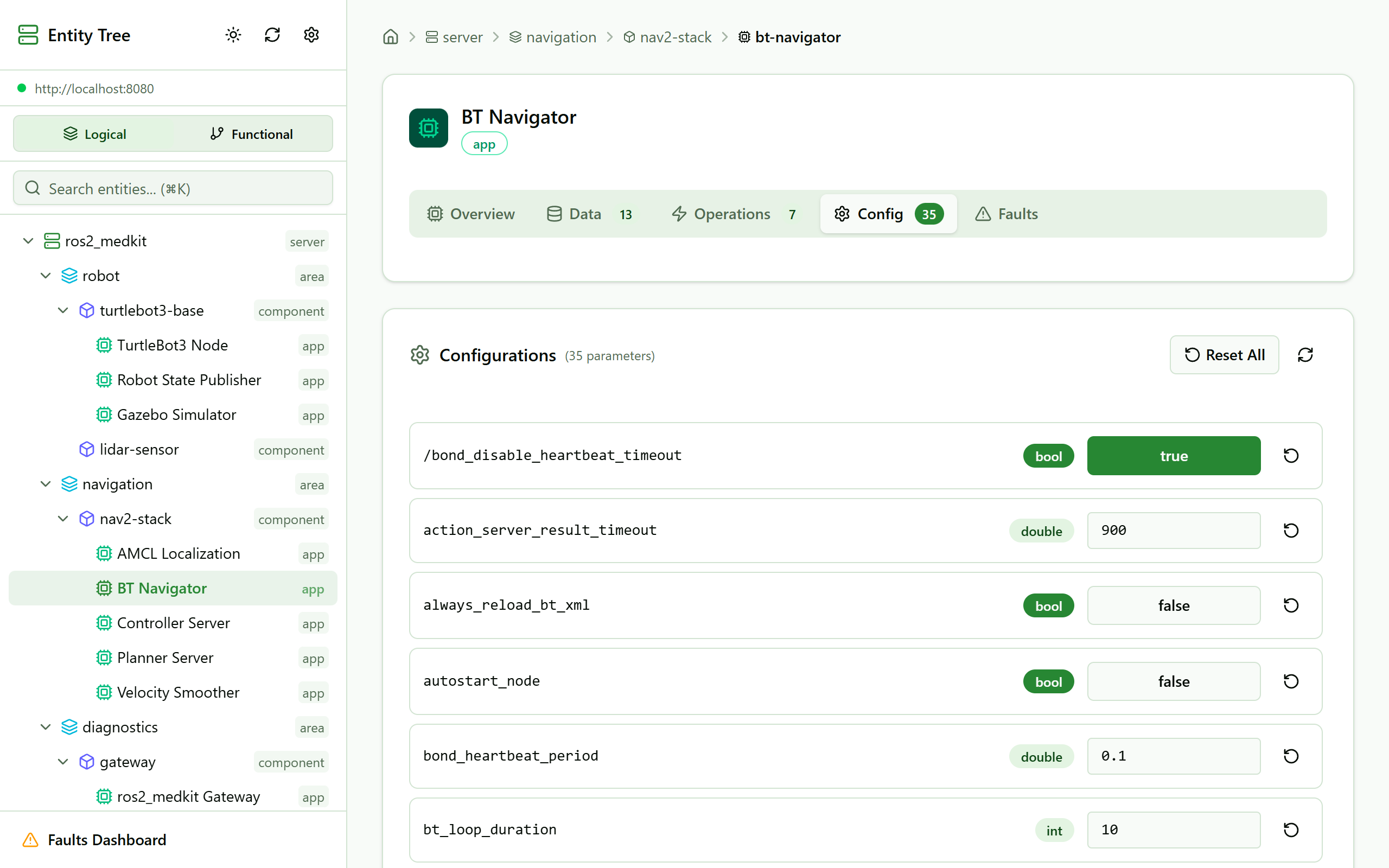
List of parameters with current values.
Edit parameters directly in the UI:
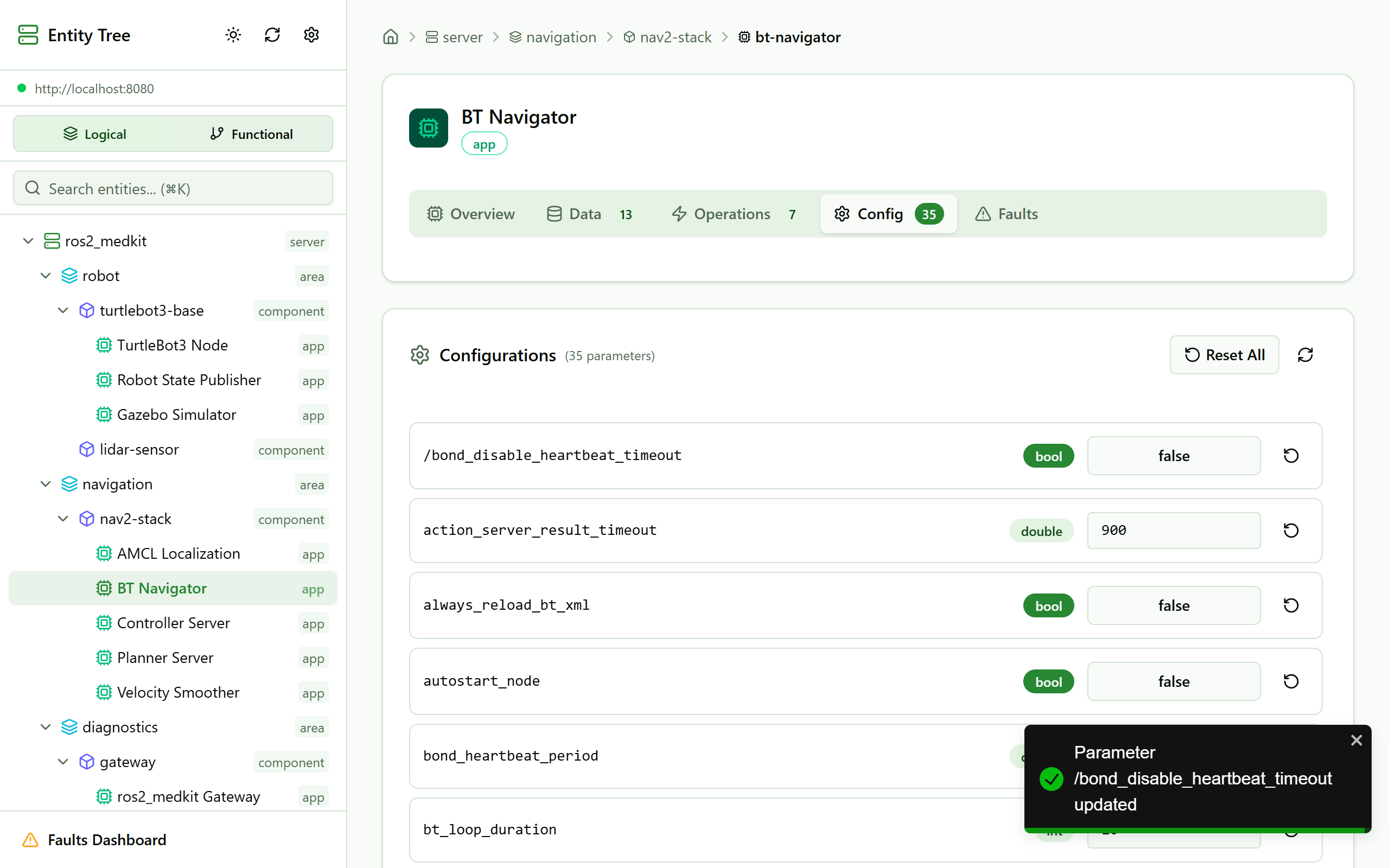
Inline parameter editing with type validation.
Docker Compose Example
Run both gateway and web UI together:
# docker-compose.yml
version: '3.8'
services:
  gateway:
    image: ros:jazzy
    command: >
      bash -c "source /opt/ros/jazzy/setup.bash &&
               ros2 launch ros2_medkit_gateway gateway.launch.py server_host:=0.0.0.0"
    ports:
      - "8080:8080"
    network_mode: host

  web_ui:
    image: ghcr.io/selfpatch/ros2_medkit_web_ui:latest
    ports:
      - "80:80"
Tech Stack
React 19 — UI framework
TypeScript — Type safety
Vite — Build tool
TailwindCSS 4 — Styling
shadcn/ui — UI components
Zustand — State management
Repository
See Also
Getting Started — Basic gateway setup
Server Configuration — Configure CORS for web UI access