TurtleBot3 Demo
This tutorial shows ros2_medkit integration with a TurtleBot3 simulation running Gazebo and Nav2 navigation stack.
Overview
This Docker-based demo showcases ros2_medkit with TurtleBot3 Waffle:
TurtleBot3 Simulation — Gazebo world with TurtleBot3 Waffle robot
Nav2 Navigation — Full navigation stack with SLAM
ros2_medkit Gateway — REST API exposing robot capabilities
Web UI — Visual entity browser
Key Features:
Complete navigation system with goal sending
Sensor data access (LiDAR, odometry, camera)
Fault injection scenarios (localization, navigation failures)
Docker-based — no local ROS 2 installation needed
Prerequisites
Docker and Docker Compose installed
Git (to clone the demo repository)
Starting the Demo
Clone the demo repository and run the startup script:
git clone https://github.com/selfpatch/selfpatch_demos.git
cd selfpatch_demos/demos/turtlebot3_integration

# Start the demo (daemon mode)
./run-demo.sh
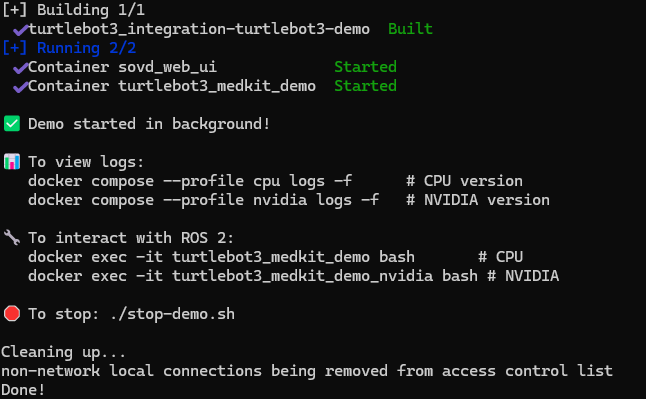
Terminal showing demo services starting up.
The script will build and start Docker containers with:
Gazebo simulation with TurtleBot3 Waffle
Nav2 navigation stack
ros2_medkit gateway (REST API on port 8080)
ros2_medkit_web_ui (Web interface on port 3000)
Startup Options:
./run-demo.sh --attached    # Run in foreground with logs
./run-demo.sh --update      # Pull latest images
./run-demo.sh --no-cache    # Build without cache
Exploring the System
Open the web UI at http://localhost:3000 and connect to the gateway at http://localhost:8080 and api/v1
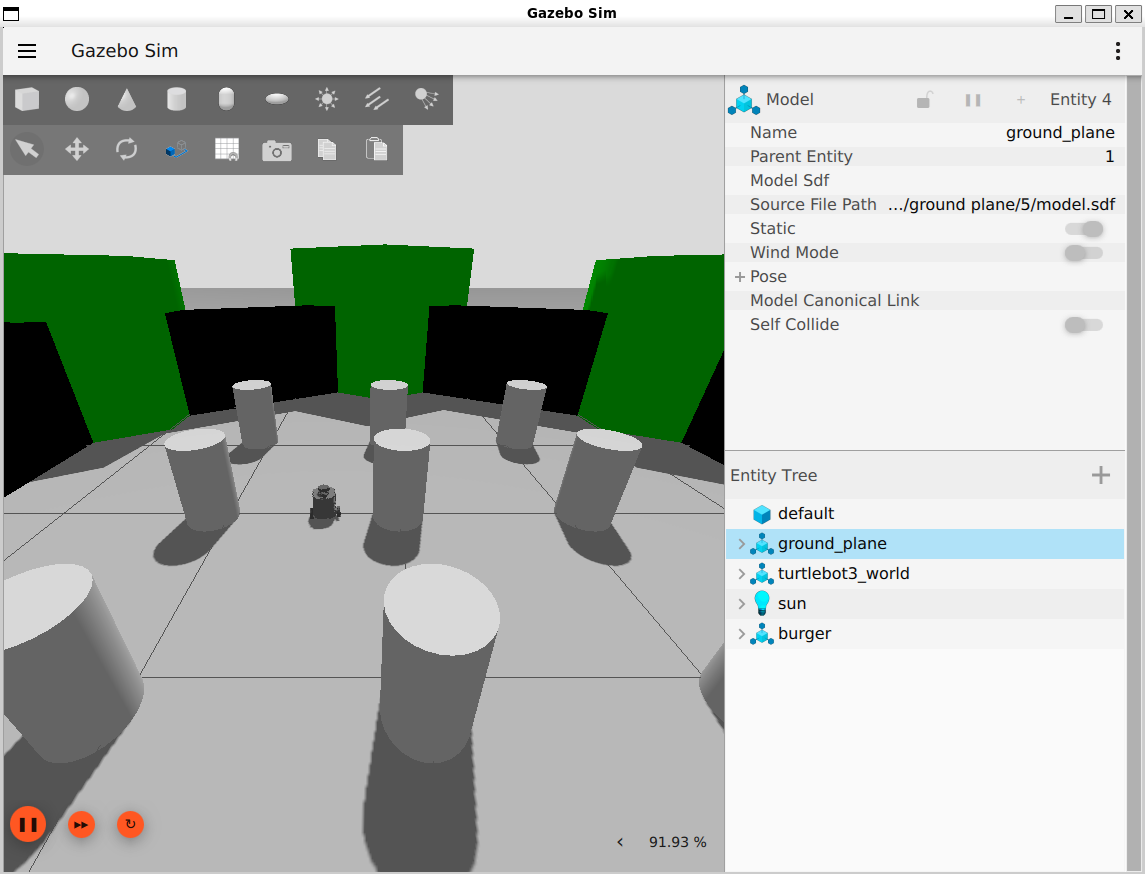
TurtleBot3 Waffle in Gazebo simulation.
The demo uses a manifest-based configuration to organize entities into logical areas:
robot — TurtleBot3 hardware and drivers
navigation — Nav2 navigation stack
diagnostics — ros2_medkit gateway and fault management
bridge — Legacy diagnostics bridge
Querying via API:
curl http://localhost:8080/api/v1/areas | jq
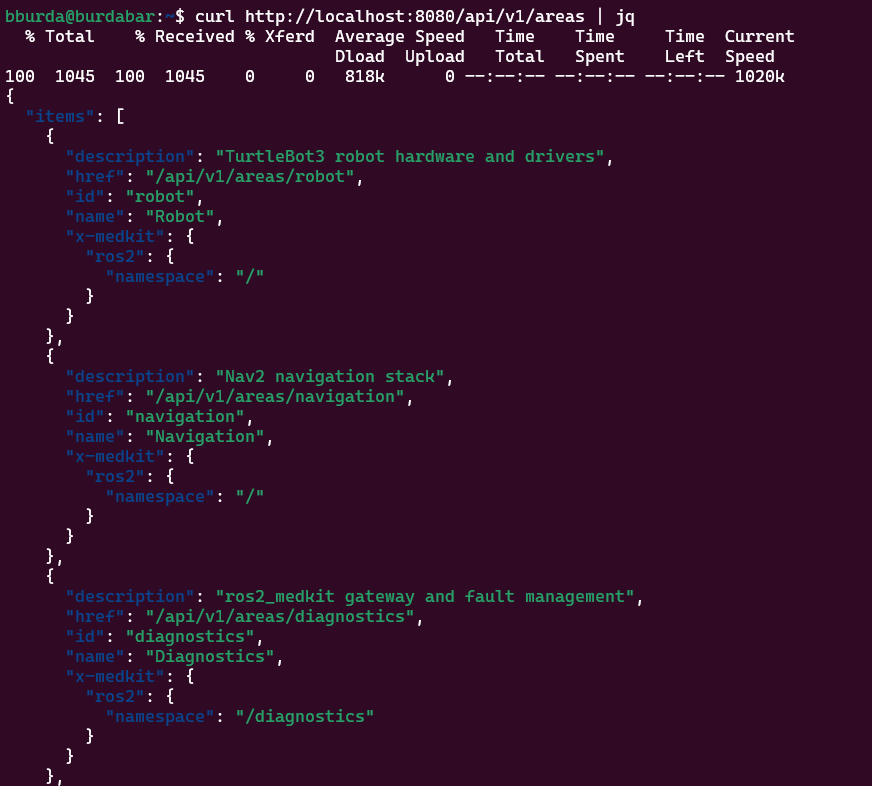
Areas discovered from TurtleBot3 system.
Interactive API exploration:
# Run the interactive check script
./check-entities.sh
Reading Sensor Data
Navigate to an app in the web UI and explore the data folder to see published topics.
Query data via REST API:
# List all apps
curl http://localhost:8080/api/v1/apps | jq

# Get specific topic from AMCL localization
curl http://localhost:8080/api/v1/apps/amcl/data | jq

# Get specific topic from controller server
curl http://localhost:8080/api/v1/apps/controller-server/data | jq
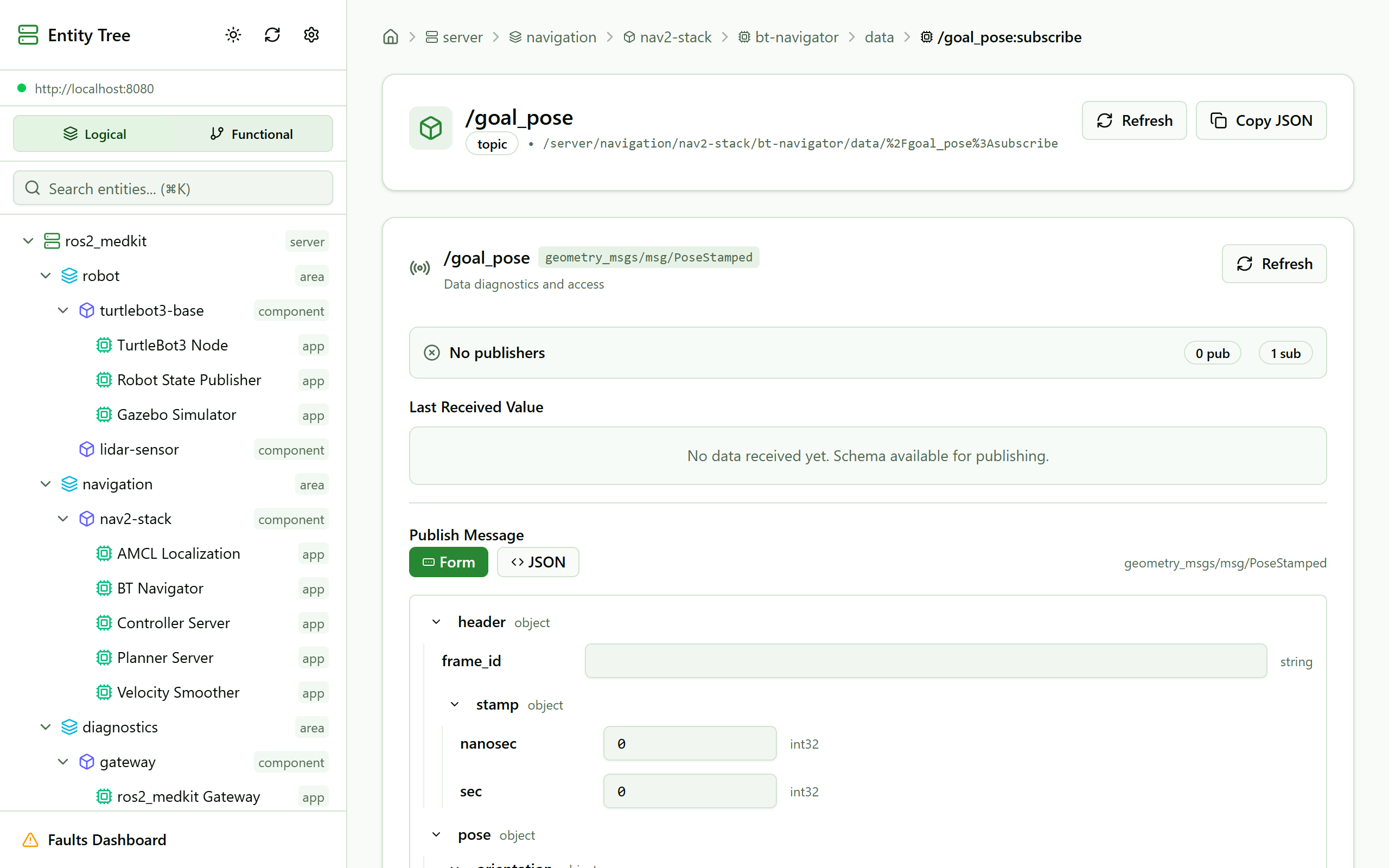
Viewing topic data in the web UI.
Managing Parameters
Click on the configurations folder in the web UI to see ROS 2 parameters.
View and modify parameters:
# List all configurations for AMCL
curl http://localhost:8080/api/v1/apps/amcl/configurations | jq

# Get specific parameter
curl http://localhost:8080/api/v1/apps/amcl/configurations/use_sim_time | jq

# Change parameter value
curl -X PUT http://localhost:8080/api/v1/apps/amcl/configurations/use_sim_time \
  -H "Content-Type: application/json" \
  -d '{"value": false}'
Fault Injection
The demo includes fault injection scripts to test diagnostic capabilities:
Available fault injection scripts:
# Inject localization failure
./inject-localization-failure.sh

# Inject navigation failure
./inject-nav-failure.sh

# Restore normal operation
./restore-normal.sh
View active faults:
# Check faults script
./check-faults.sh

# Or query via API
curl http://localhost:8080/api/v1/faults
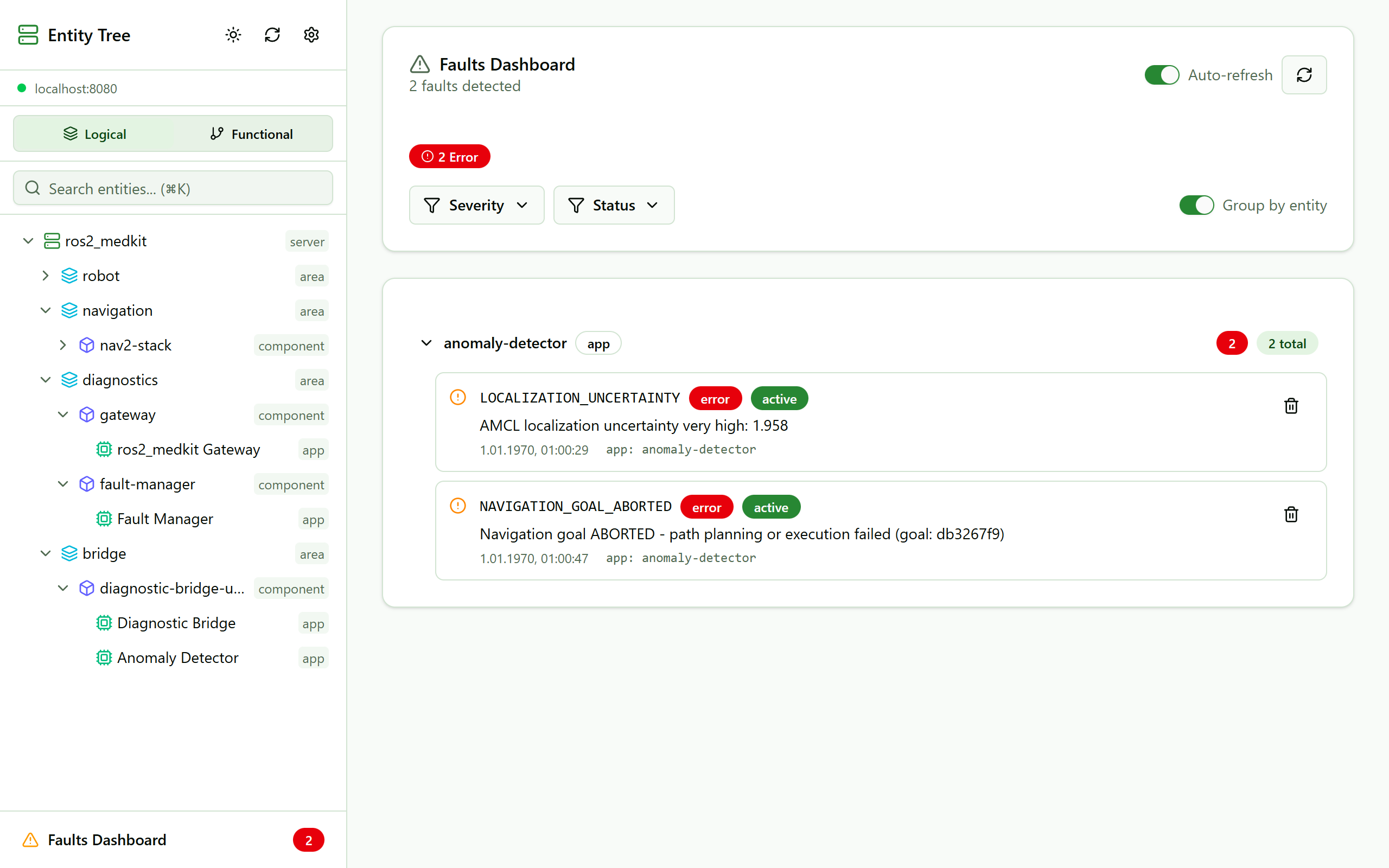
Dashboard showing active faults.
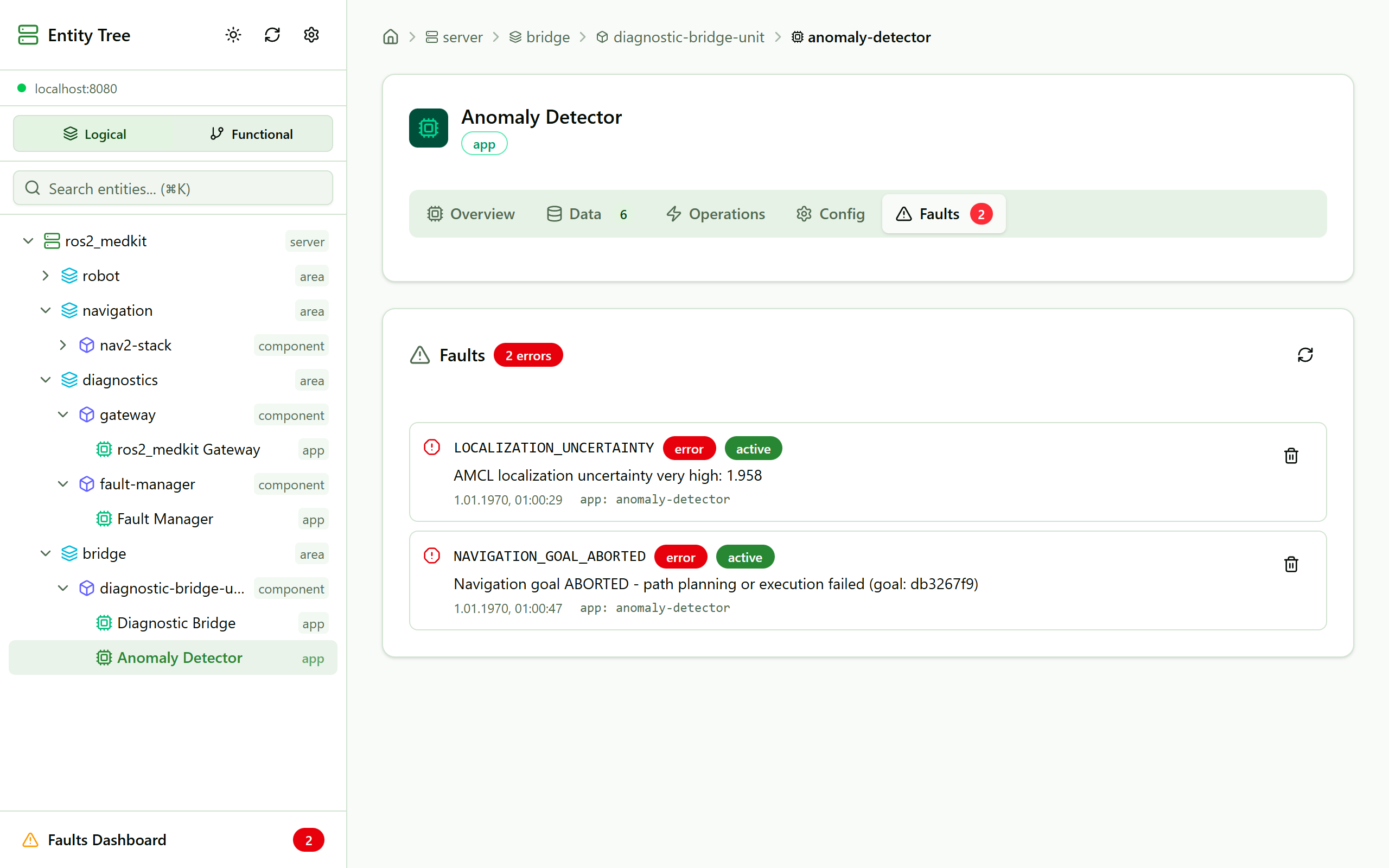
Fault details in the entity view.
Stopping the Demo
To stop all services:
./stop-demo.sh
See Also
Sensor Diagnostics Demo — Built-in sensor diagnostics demo
Docker Deployment — Docker deployment guide
selfpatch_demos — Integration demos repository